How to Get and Use an Airalo eSIM
This page walks you through the complete process of purchasing, installing, and using an Airalo eSIM, from checking device compatibility to troubleshooting connectivity issues abroad.
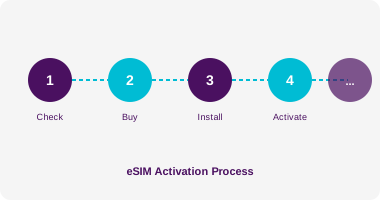
Step 1: Check Device Compatibility
Before purchasing an eSIM, confirm that your device supports eSIM technology and is unlocked. An unlocked device can connect to any compatible network, whereas a locked device is restricted to your home operator's network.
| Device | eSIM Support | Notes |
|---|---|---|
| iPhone XS, XS Max, XR (2018) | Yes | First iPhones with eSIM |
| iPhone 11, 12, 13, 14, 15, 16 series | Yes | Full eSIM support |
| iPhone 14 (US models) | eSIM only | No physical SIM slot |
| Google Pixel 3 and later | Yes | Check carrier unlock status |
| Samsung Galaxy S20 and later | Yes | Some carrier-locked models excluded |
| Samsung Galaxy Z Fold/Flip series | Yes | Full eSIM support |
| iPad Pro (2018 and later) | Yes | Wi-Fi + Cellular models only |
| MacBook Pro/Air (M1 and later) | Yes | Limited eSIM data support |
| Older Android devices (pre-2019) | Varies | Check manufacturer specifications |
To check eSIM support on your device: on iPhone, go to Settings > General > About and look for an EID number. On Android, go to Settings > Network & Internet > SIM cards and look for an Add eSIM option.
Step 2: Download the Airalo App
Download the Airalo app from the Apple App Store or Google Play Store. Create a free account using your email address. The app is free to download and use; you only pay when purchasing a plan.
- Device confirmed as eSIM-compatible
- Device confirmed as unlocked (or check with your carrier)
- Wi-Fi connection available for installation
- Destination and travel dates confirmed
- Data requirements estimated (see Pricing page)
- Airalo app downloaded and account created
Step 3: Purchase Your eSIM Plan
In the Airalo app, search for your destination country or region. Browse available plans, comparing data allowances, validity periods, and prices. Select the plan that best matches your needs using the Selection Matrix as a guide.
Payment is accepted via credit card, debit card, PayPal, and other methods depending on your region. After payment, you will receive your eSIM QR code and activation instructions by email and within the app.
Step 4: Install the eSIM
Install your eSIM while connected to Wi-Fi, ideally before you travel. The installation process varies slightly by device:
| Device Type | Installation Method | Location in Settings |
|---|---|---|
| iPhone | Scan QR code or use Airalo app | Settings > Mobile Data > Add eSIM |
| Android (most) | Scan QR code | Settings > Network > SIM cards > Add eSIM |
| Samsung Galaxy | Scan QR code | Settings > Connections > SIM manager > Add eSIM |
| Google Pixel | Scan QR code or use app | Settings > Network > SIM > Download a SIM |
After scanning the QR code, your device will download the eSIM profile. This typically takes 1 to 2 minutes. Do not close the settings screen during this process.
Step 5: Configure Your Device
After installation, configure your device to use the eSIM for mobile data while keeping your UK SIM for calls and texts. On iPhone, go to Settings > Mobile Data and set Default Line to your UK SIM, then set Mobile Data to your Airalo eSIM. On Android, the process is similar in the SIM management settings.
Enable Data Roaming on the Airalo eSIM line. This is required for the eSIM to connect to networks abroad and does not incur additional charges beyond your plan allowance.
Step 6: Activate and Use Abroad
Your eSIM plan activates on first use — when your device connects to a network in the destination country. The validity period begins at this point, not at the time of purchase. This means you can purchase your plan weeks in advance without losing validity days.
Monitor your data usage via the Airalo app, which shows remaining data and days in real time. If you need more data, you can purchase a top-up plan within the app.
Common Issues and Solutions
| Issue | Likely Cause | Solution |
|---|---|---|
| eSIM not connecting | Data roaming disabled | Enable Data Roaming for eSIM line in settings |
| Slow speeds | Network congestion or plan throttling | Move to a different location; check plan fair-use policy |
| QR code not scanning | Camera focus or lighting | Use manual entry code; ensure good lighting |
| eSIM not showing in settings | Device not compatible or locked | Verify device compatibility; contact carrier about unlock |
| Data used faster than expected | Background app refresh | Disable background refresh for data-heavy apps |
| Plan expired before trip ends | Activation before travel | Purchase a top-up plan in the Airalo app |